
The best screen recorders for YouTube: six tools for different kinds of creators
From a first tutorial to a polished software demo, compare ZXN Studio, Screen Studio, Tella, OBS Studio, QuickTime and ShareX with clear pricing tables.
In this article
The best screen recorder for YouTube depends on what your viewer needs to see. A software tutorial needs readable controls. A programming lesson needs clear text and enough time to follow the changes. A gaming video may need several audio sources and a repeatable scene setup. A presenter-led course needs a comfortable way to move between the speaker and the screen.
This guide compares six useful options: ZXN Studio, Screen Studio, Tella, OBS Studio, QuickTime Player and ShareX. We make ZXN Studio, so our recommendations reflect that perspective. The aim is to help you choose a suitable workflow, not to declare a universal winner. Competitor features and prices come from official sources, checked on 22 October 2026; we have not run a comparative performance benchmark.
The shortlist by type of channel
| Type of video | First tool to evaluate | Main reason |
|---|---|---|
| Edited Mac tutorials with titles and supporting footage | ZXN Studio | Recording and a broader timeline editor together |
| Focused software demonstrations | Screen Studio | Screen presentation and zoom workflow |
| Presenter-led lessons and team-produced explainers | Tella | Separate sources and flexible layouts |
| Gameplay, live production and reusable capture scenes | OBS Studio | Configurable sources, scenes and audio mixing |
| A simple Mac recording to edit elsewhere | QuickTime Player | Built-in capture with little setup |
| Short Windows captures and reusable snippets | ShareX | Free capture tools and configurable workflows |
The recommendations are our assessment of the documented workflows. You can make a strong tutorial with a simple recorder and a separate editor, or save handoff time with an integrated tool. Your existing skills and publishing routine should influence the choice.
Pricing compared properly
These are public USD prices before applicable taxes, discounts or enterprise terms. Annual equivalents are labelled because a payment of $108 today is different from a $9 monthly subscription.
| Recorder | Free option | Pay monthly | Annual or one-time option |
|---|---|---|---|
| ZXN Studio | Full editor with exports up to 1080p | $15.99 | $159 once for the Studio lifetime editor |
| Screen Studio | No permanent free plan listed | $29 | $108/year, equivalent to $9/month |
| Tella Pro | Trial; check current trial terms | $26/user | $156/user/year, equivalent to $13/month |
| Tella Premium | Trial; check current trial terms | $39/user | $228/user/year, equivalent to $19/month |
| OBS Studio | Free and open source | $0 | $0 |
| QuickTime Player | Included on Mac | $0 additional | Included with macOS |
| ShareX | Free and open source | $0 | $0 |
Pricing sources: ZXN Studio, Screen Studio, Tella, OBS and ShareX. QuickTime is Apple's included Mac application; see its screen-recording guide.
If you only need a finished upload for YouTube, do not automatically pay extra for hosted viewing features. YouTube handles delivery to your channel's audience. Separate hosting may still be valuable for private review, client links or a backup workflow, but that is a different requirement from producing the upload file.
1. ZXN Studio: for the recording and the edit
ZXN Studio suits Mac creators who want to turn screen footage into a structured video in the same workspace. Record the demonstration, put the useful moments on a timeline, add an introduction or title, and shape the pace before exporting. The free plan lets you try that process through to a 1080p file.
Studio adds premium visual treatments and higher-end export options, including 4K, 60 fps and ProRes. It also includes live background removal, depth occlusion, 3D surfaces and motion tracking. Those tools give you room to develop a channel's visual style, although a clear tutorial often needs only a small number of deliberate effects.
The new crop tool is useful when an imported recording includes excess space. Reframe the relevant area, then check that labels remain readable at the final viewing size. Monthly includes 300 GB of managed cloud storage; lifetime sharing uses your own private R2 bucket. Choose the plan around your editing and sharing needs, not resolution alone.
2. Screen Studio: for a screen-focused presentation
Screen Studio belongs on the shortlist when the application's interface carries most of the explanation. Its guides cover automatic and manual zooms, selected-window recording and capture of a chosen area. Evaluate how those tools guide attention through your own demonstration. Screen Studio guide.
A good trial is a short task with three steps and a visible result. Do viewers understand where the pointer moved? Can they still read the setting after the zoom? Does the framing preserve the surrounding context? Those questions are more useful than deciding whether the sample video on a homepage looks stylish.
This is especially relevant for creators who repeatedly publish concise software walkthroughs. Consistency matters: a familiar visual rhythm can help returning viewers spend less effort interpreting the presentation and more effort learning the task.
3. Tella: for lessons with a visible presenter
Tella offers separate screen and camera recording sources, with browser, Mac and Windows capture options. Its editor supports changes between presenter and screen layouts. That makes it worth evaluating for lessons in which the speaker remains an important part of the explanation. Tella recorder, Tella editor.
Think about when a viewer benefits from seeing you. A full-screen introduction can establish the purpose. A smaller camera view can retain a human presence during the demonstration. Giving the screen the whole frame can protect a dense diagram from becoming too small. The right layout follows the information, rather than changing simply because a transition is available.
Check the exact plan for your export requirements and any hosted review you want alongside YouTube. A feature that helps a team deliver private videos may be useful, but it should not be confused with something your public upload requires.
4. OBS Studio: for control over the recording setup
OBS Studio is free, open source and available for Windows, macOS and Linux. It combines sources into scenes and includes an audio mixer with per-source filters. That makes it a serious option for creators who need a repeatable capture arrangement or who also stream. OBS Studio.
The trade-off to evaluate is setup responsibility. Decide which sources belong in each scene, check their levels and record a short sample before a long session. A reusable setup can pay off over many episodes, but the first recording deserves some preparation.
For a YouTube tutorial, plan where the edit happens afterwards. Treat capture quality and editing comfort as separate decisions. If you already know another editor well, keeping OBS as the capture stage may be a sensible combination. If every transfer creates friction, include an integrated recorder and editor in your trial.
5. QuickTime Player: for a simple Mac capture
QuickTime Player can open the Mac's screen-recording controls through File > New Screen Recording. Apple's guide explains recording and saving the result locally. It is an accessible starting point when you need footage and already have somewhere to edit it. Apple's guide.
The sensible use case is narrow: capture a demonstration without building a new production system. You might record a brief example for an existing lesson or collect footage that another editor will assemble. Before a full take, verify the required audio and capture area with a sample. The fact that recording is built in does not remove the need to check the resulting file.
6. ShareX: for quick Windows source material
ShareX is a free, open-source Windows tool with screen recording, screenshots and GIF capture among its features. It is worth considering when short captures and reusable visual snippets are a regular part of your work. ShareX.
For YouTube, think of those captures as ingredients. A quick recording can illustrate a menu, a small workflow or an example inside a larger edit. Decide how the material reaches your editor and review the configured destinations before using it for private work. A convenient capture routine is valuable when it reliably produces the source files you need.
Compare the workflow, not just the recorder
| Question | Why it matters for a YouTube channel |
|---|---|
| Can I read the smallest important text? | Viewers may watch in a small player or on a phone |
| Can I correct one mistake without rebuilding the video? | Tutorials often need small changes before publication |
| Where do camera and screen footage meet? | Layout choices influence clarity and editing effort |
| Can I hear speech clearly throughout? | Inconsistent audio makes an otherwise useful lesson harder to follow |
| Can I reopen and update the project later? | Software tutorials age as the product changes |
| What does the complete monthly workflow cost? | Capture, editing and hosting may be separate purchases |
A practical recording test before you pay
Choose one task you genuinely intend to teach. Write a short opening that says what the viewer will achieve, then record the steps at a calm pace. Keep the pointer still when it is not helping explain something. Use realistic data and remove unrelated windows before recording.
Make one intentional mistake and a short pause. Those give you something concrete to fix in the editor. If the correction takes longer than expected, decide whether it is unfamiliarity or a poor fit for the way you work. A second short attempt is often more informative than an hour spent comparing checkboxes.
Export the result and watch it outside the editor. Check a smaller viewing size, listen through ordinary headphones and confirm that the final action remains visible long enough to understand. An export labelled 4K is not automatically clearer than a well-framed 1080p video. The source and composition still matter.
Keep the editable project and its source files organised. A successful first upload is useful; a repeatable process for the next ten uploads is more valuable. Name the project so you can find it, retain the footage you need, and avoid relying on the final compressed upload as your only copy.
Which recorder should you choose?
For a Mac creator who wants recording and creative editing together, start with ZXN Studio's free editor. Compare Screen Studio when the screen demonstration itself is the main product, and Tella when presenter layouts shape the lesson. Choose OBS for a configurable capture setup, QuickTime for a simple Mac source recording, or ShareX for quick Windows captures.
The best choice is the tool that lets you explain the subject clearly and keep publishing. Test one representative video from capture to finished file, then spend your attention on the lesson your audience came to learn.
Related journal notes
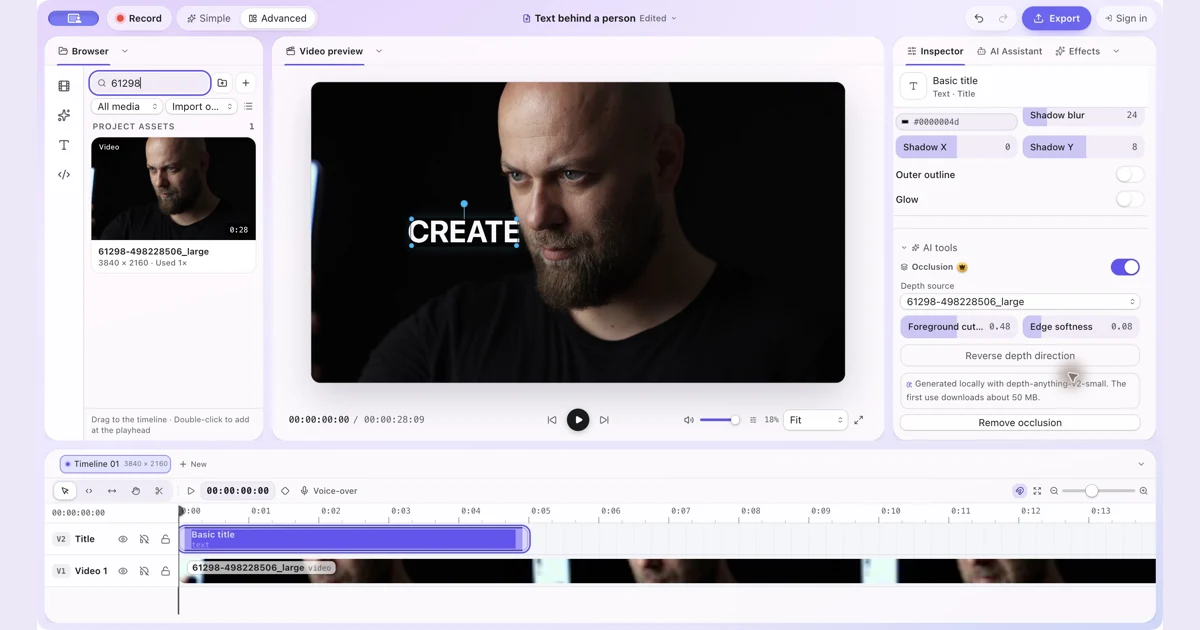 How to Put Text Behind a Person in a Video on MacPut text and other visual items behind a person with manual occlusion in ZXN Studio. Follow the layer setup and refine the depth boundary.
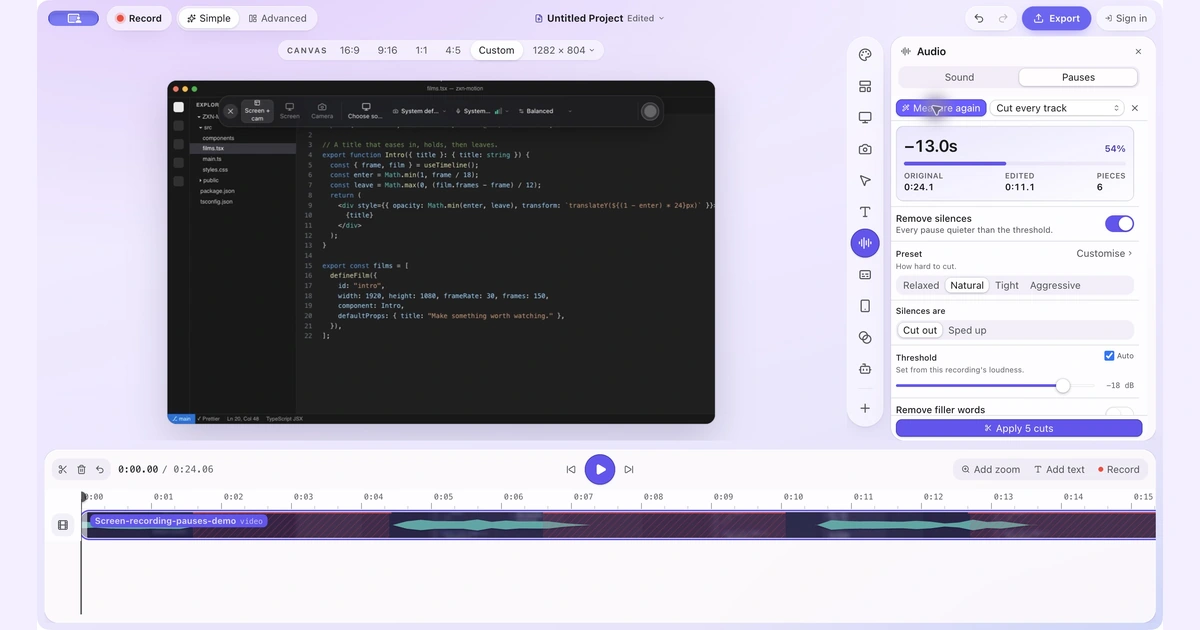 How to Remove Silence and Long Pauses From a Screen Recording on MacFind quiet gaps, keep useful thinking time and shorten a screen recording without cutting off words or losing sync.
 A finished video or a fast explanation? ZXN Studio vs Screen Studio vs LoomChoose a recorder around the job your video needs to do. We compare editing, sharing, pricing and the handoff from creator to viewer.