
ZXN Studio vs DaVinci Resolve
Compare ZXN Studio’s recording-led workflow with DaVinci Resolve’s post-production tools, including free export limits and a practical hand-off test.
In this article
ZXN Studio and DaVinci Resolve overlap as video editors, but the right starting point depends on your production. ZXN Studio combines screen recording with creative multi-track editing. The current release is for Mac, with Windows and Linux planned. Blackmagic Design presents DaVinci Resolve as a post-production application covering editing, colour, visual effects, motion graphics and audio. Choose around the work you must complete, not the assumption that a larger toolset always improves a smaller job.
This comparison is current as of 19 September 2026. Resolve details are attributed to Blackmagic's official pages; verify the current version and edition before committing.
Start with the source of your footage
For a screen-led tutorial, capture is part of the job rather than a separate preliminary task. ZXN Studio's current native recorder targets macOS 26 or later and records screen, camera and a microphone or audio-interface input on Mac. Completed screen and camera recordings remain separately editable.
The current native Mac recorder can capture application playback with System audio enabled. Microphone input is selected separately. Test both in a completed recording when the demonstration depends on narration and software sound.
For existing camera footage, begin with media handling and finishing requirements instead. Do not compare an integrated recorder against a post-production workflow while ignoring how the footage will enter either project. See ZXN recording requirements.
Compare the kind of control you need
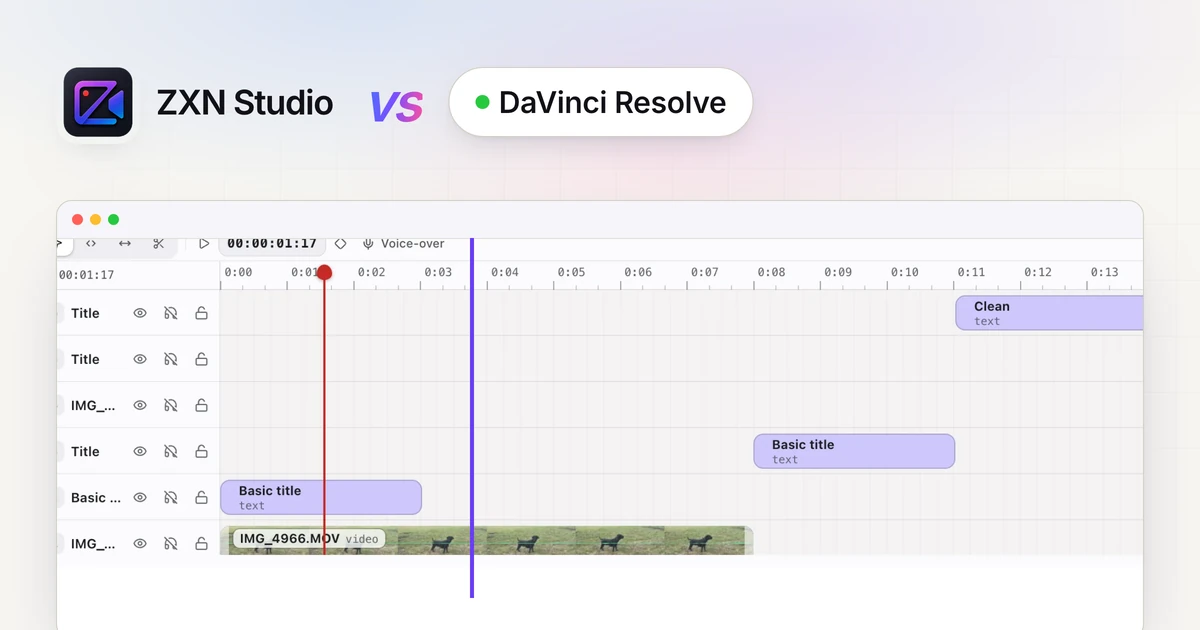
ZXN Studio supports timeline trims and splits, layers, transforms, opacity, blend modes and keyframes. Its creative tools include titles, effects, colour corrections, wheels, curves, local background removal and source-backed editable TSX motion graphics.
Blackmagic's colour page describes Resolve's dedicated grading environment, while its Fairlight page details a specialised audio-post-production workspace. Those published tools make Resolve a strong candidate when grading or audio finishing is a central requirement rather than a small adjustment around a screen demonstration.
This is a scope-based recommendation, not a claim about measured speed. Test whether the controls you need are accessible in the edition and workflow you plan to use.
Do not overlook Resolve's free edition
Blackmagic describes the free DaVinci Resolve edition as supporting work up to Ultra HD 3840 × 2160 at 60 fps, with media-format limitations. The paid DaVinci Resolve Studio edition adds further capabilities. Review the official edition comparison for the current details rather than assuming all tools are free.
ZXN Studio Free is limited to recording/export up to 1080p at 30 fps. Its included treatments are plain titles, six filters, six effects, three camera frames and people background removal using RVM.
That distinction matters: free higher-resolution finishing may be a reason to evaluate Resolve. ZXN Studio should not be presented as the automatic budget winner merely because it has a Free plan.
Keep the two Studio products distinct
DaVinci Resolve Studio and ZXN Studio's paid Studio plan are unrelated purchases. ZXN Studio's paid Studio plan costs $15.99 USD monthly or $159 USD lifetime, with the same Studio editor tools under either payment option. Monthly additionally includes hosted link sharing and 300 GB of managed storage; lifetime does not include that managed-storage allowance. Monthly renews until cancelled; lifetime is one payment.
ZXN's paid plan adds 4K, 60 fps, supported native ProRes masters, all title styles, effects, filters, camera frames and cutout models. It also adds live background removal, depth occlusion, 3D surfaces and motion tracking.
These names do not establish feature-for-feature parity with Resolve tools. Compare the operation and result you need, not whether both lists mention tracking, colour or effects.
Test a hand-off before building around it
You may prefer one application for a stage of production and another for finishing. Treat that as a workflow to verify, not an assumed integration.
ZXN Studio's current export choices include MP4 H.264/AAC, MOV H.264/AAC, WebM VP9/Opus and supported native ProRes masters. Export a representative file and test it in the receiving application with the actual settings you intend to use.
A rendered file is not an editable timeline interchange. Do not assume cuts, separate layers, keyframes or TSX graphics transfer as native Resolve elements. Keep source recordings and the ZXN project available for revisions. The export guide explains delivery checks.
Run a representative project in each workflow
Use a short section containing narration, a camera layer, a title and one difficult visual treatment. Make the required edit, then inspect an exported result. Include the awkward source clip, not only material you already know behaves well.
Check synchronisation, text readability, colour continuity and any model or effect restrictions. In ZXN Free, Studio-only features may be previewed, but export identifies the clips requiring Studio. Verify Resolve's own edition restrictions through its current documentation.
Do not compare only timeline playback. Preview responsiveness and the quality of an exported file answer different questions.
Choose for the real finishing requirement
Start with Resolve when its documented grading, audio or wider post-production scope is central to your work. Start with ZXN Studio when separately editable Mac recordings and a composed screen-video workflow are the priority.
Complete a first ZXN project and a comparable Resolve test before buying around assumptions. The better fit is the workflow that meets your actual delivery requirements with understandable compromises.
Related comparisons
 ZXN Studio vs CapCutCompare CapCut’s official editing and caption tools with ZXN Studio’s Mac recording and multi-track workflow, using a practical project test.
 ZXN Studio vs LoomCompare Loom’s video-message and sharing workflow with ZXN Studio’s editable Mac recordings, creative timeline and file-based delivery choices.
 ZXN Studio vs RecutCompare Recut’s automatic silence-removal role with ZXN Studio’s recording and creative editing workflow, including pauses, hand-offs and export checks.