
One project, two layouts: Simple and Advanced in ZXN Studio
Keep the preview front and center in Simple, or open the full editing workspace in Advanced. Switch layouts while continuing the same project.
In this article
Some videos need a cleaner frame and a quick trim. Others grow into several scenes, layered titles and a detailed timeline. ZXN Studio now gives you Simple and Advanced layouts for the same project, so the workspace can match the edit you are doing.
Switching changes how the controls are arranged. Your project continues in the other layout, with the same footage and edits. You can move between them as the work changes.
Simple puts the picture first
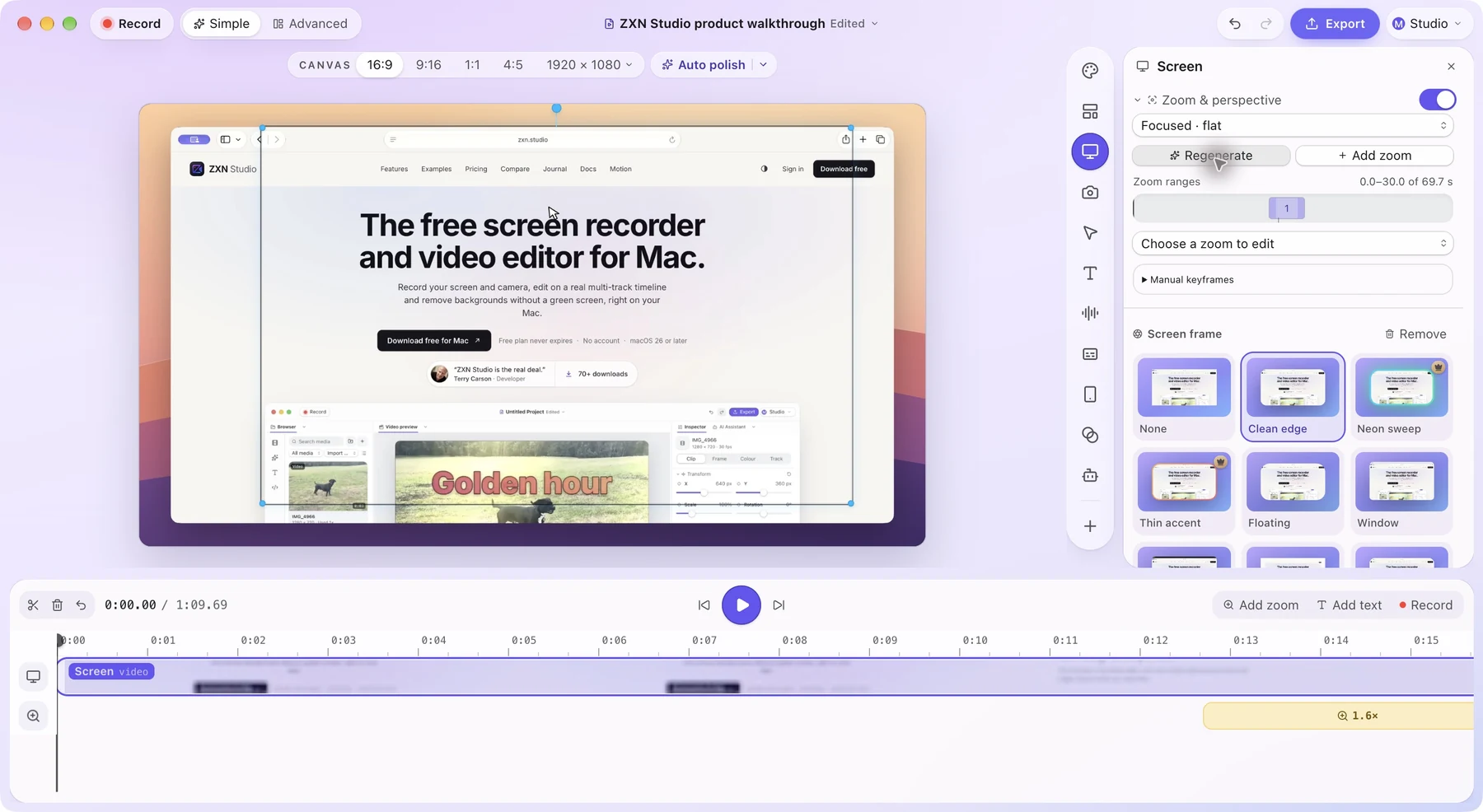
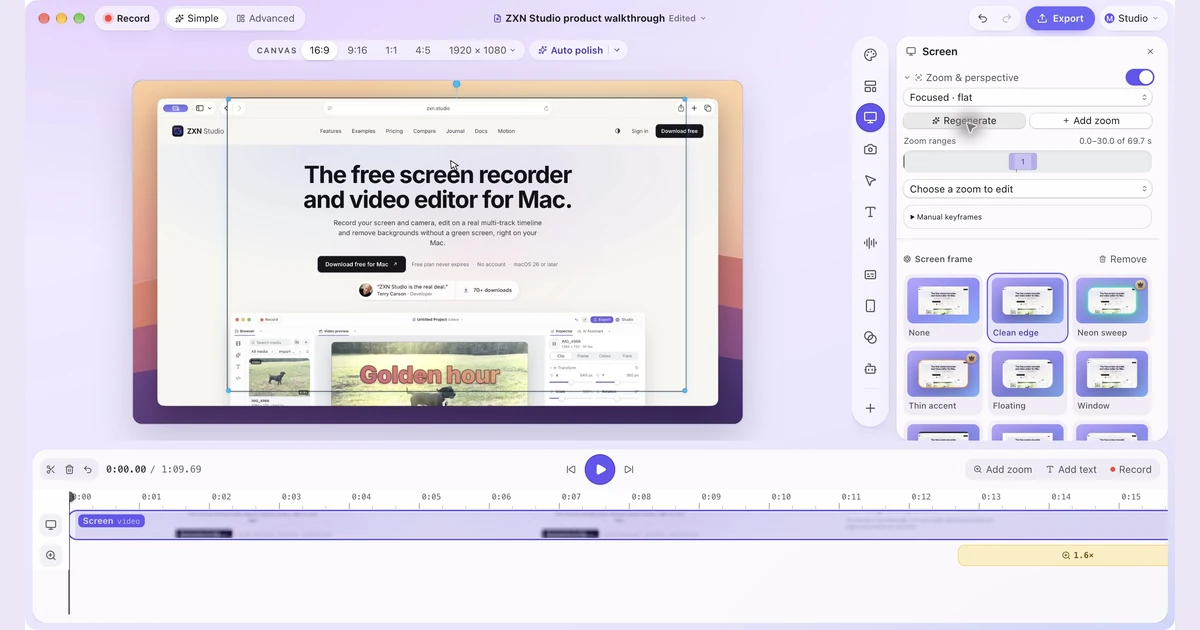
Simple gives the preview a prominent place, with one card of controls beside it and a slim timeline below. The rail organizes common recording tasks into pages such as Background, Layout, Screen, Camera, Cursor, Text and Audio.
That arrangement is useful for polishing a screen-and-camera recording. Choose a background, adjust how the screen and presenter share the frame, then refine the details in the relevant card. The Screen card contains zoom and perspective controls; the Camera card handles framing and background removal.
The timeline remains available for timing changes. You can resize the card and timeline by dragging the gaps between them, and pin additional panels to the rail when you need them. Simple can stay focused while still giving you access to a particular tool.
Advanced opens the editing workspace
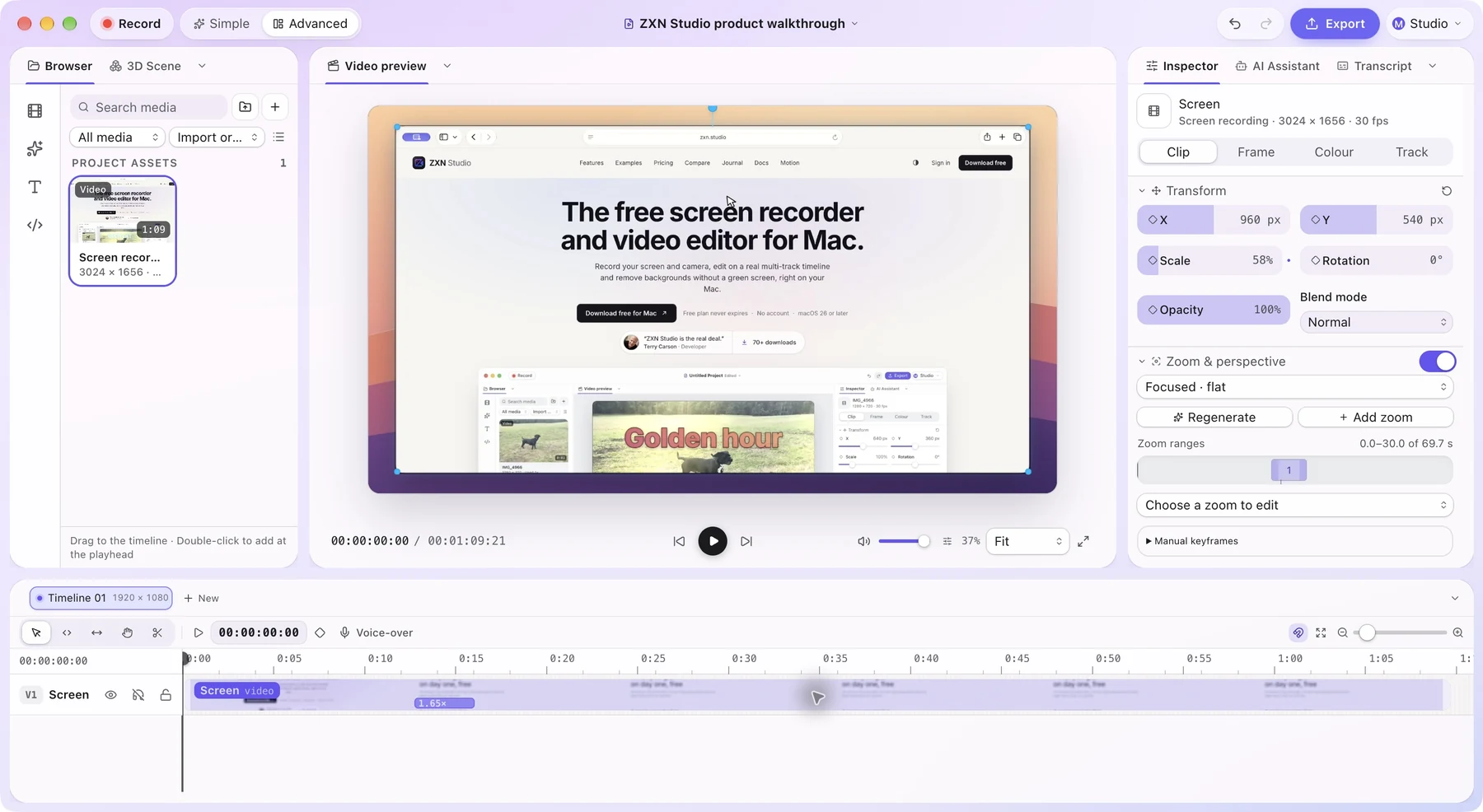
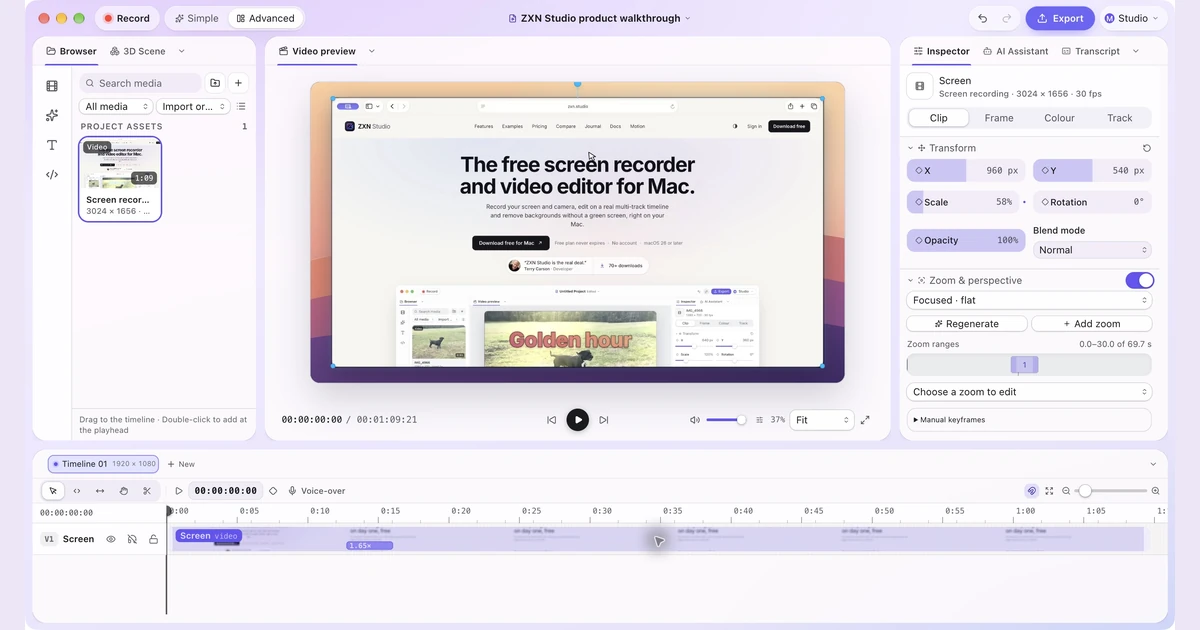
Advanced arranges the media browser, inspector and full timeline in a docked workspace. It is useful when you want to work across several clips, inspect a selected element and keep more of the project visible at once.
Choose it when the question becomes “How should these pieces fit together?” A longer tutorial, a sequence with supporting footage or an edit with several overlapping elements benefits from that wider view of the material.
The layout does not make creative decisions for you. It gives those decisions more room: which clip comes next, where a title belongs, and how an effect relates to the surrounding sequence.
Switch from the title bar
Use the Simple and Advanced buttons in the title bar. On Mac, Command–1 selects Simple and Command–2 selects Advanced. You can change layouts while working on the same project.
Settings also includes a preferred opening layout. Automatic opens recordings in Simple and other projects in Advanced. Choose a fixed preference if most of your work starts the same way; the title-bar switch remains available either way.
One practical difference concerns importing media. In Simple, imported material goes onto the timeline at the playhead. Advanced keeps an import in the media library so you can place it deliberately. Position the playhead with that behavior in mind.
Use the layout that helps the next decision
Start a straightforward recording in Simple and finish the composition there. Move to Advanced when arranging more material becomes the main task. Return to Simple when you want to concentrate on the picture again.
For a first exercise, try the same short walkthrough in both layouts. Adjust a camera frame in Simple, make a timeline change in Advanced, then switch back and play the result. The benefit is continuity: you can keep editing the video as its needs become clearer. Follow your first project to take that workflow through export.
Related journal notes
 12 Loom alternatives for screen recording, editing and sharingCompare 12 Loom alternatives for quick updates and polished demos, with clear editing, hosting and pricing tradeoffs, including ZXN Studio.
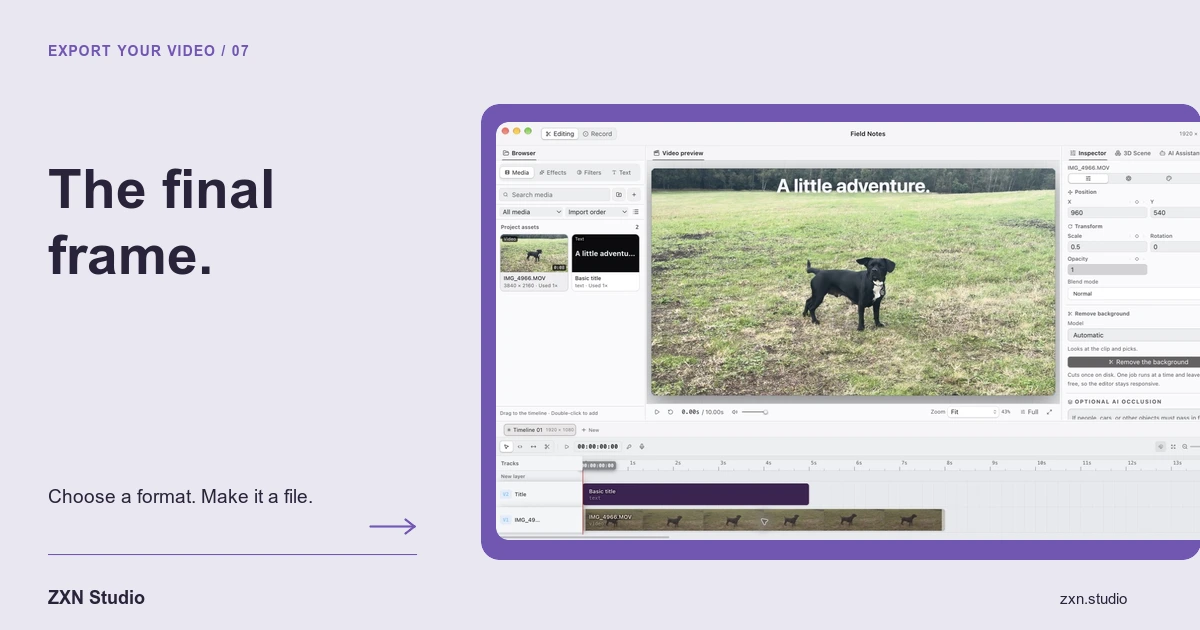 Share screen recordings with a link in ZXN StudioTurn a finished recording into a hosted viewing link, manage visibility and keep revisions together with 100 GB of storage on Studio monthly.
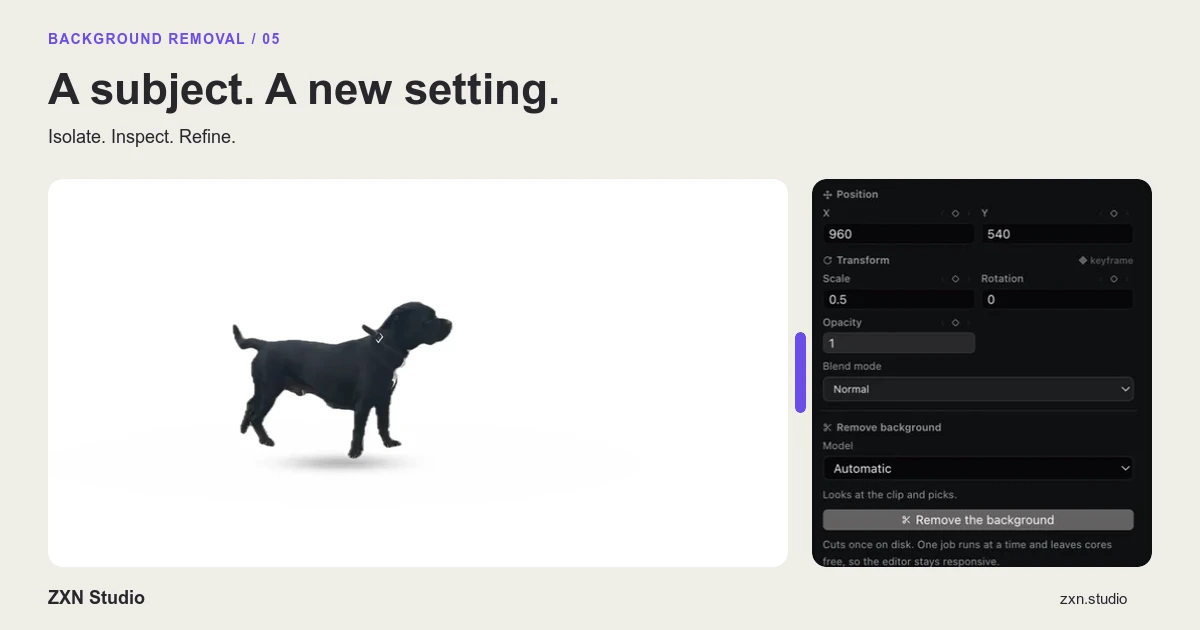 Make your presenter stand out with camera Pop outLet your presenter extend beyond a camera frame in ZXN Studio. Learn how Pop out, subject cutouts, headroom and shadow work together.