
Inside the ZXN Motion library: editable titles, callouts and graphics for your videos
Find editable titles, lower thirds, callouts and charts in the ZXN Motion library. Choose graphics that make tutorials and product demos easier to follow.
In this article
A screen recording can show every step and still leave the viewer wondering where to look. The cursor moves, a panel opens and a number changes, but the important moment passes before its meaning becomes clear. A well-placed title, arrow or caption gives that moment a little more shape.
The ZXN Motion library is a collection of editable motion graphics for videos made in ZXN Studio. It includes titles, lower thirds, captions, callouts, charts, diagrams and other graphics you can bring onto your timeline. Rather than treating each graphic as a finished video with fixed content, the library keeps text, colour, timing and code editable.
At publication on 31 October 2026, the library lists 190 motion graphics, including 33 free graphics. The remaining graphics come with ZXN Studio. The useful question is not how many you can fit into a video. It is which one will make the next sentence, step or result easier to understand.
Start with the message you need to convey
Before choosing a template, write down what the graphic should help the viewer understand. “This is the next chapter” calls for a different treatment from “Click this button” or “These are the three results.” That small decision narrows the collection much more effectively than looking for the most elaborate animation.
For a product walkthrough, you might need a chapter card to introduce a task, a callout to identify a control and a stat card to show the outcome. A course lesson might need a speaker's name, a short caption and a diagram. These are different communication jobs, even when they share the same colours and type style.
The library groups graphics into categories including titles and kinetic type, lower thirds and captions, callouts, cards and lists, data, diagrams, frames, shapes, social, UI and devices, and seasonal graphics. Use those categories to find the kind of explanation your video is missing.
Give viewers an entrance and a sense of progress
A title earns its place by establishing context. It can name a product, announce the subject of a lesson or make the transition between two parts of a demonstration clear. It should answer a question the viewer already has: what am I about to see?
The free Chapter Card is a useful starting point for dividing a longer tutorial into understandable sections. Keep its wording specific. “Invite your team” gives a viewer more direction than “Next step.” If a chapter contains several actions, use the title to describe the result those actions produce rather than listing every click.
Resist the temptation to make each section introduce a new visual style. Reusing one title treatment gives the video a recognisable structure. Variation can come from the words and the underlying footage, while the motion remains familiar enough that viewers spend their attention on the lesson.
Use lower thirds and captions for short supporting information
A lower third can identify a speaker, label a role or add a short piece of context without interrupting the main picture. The library includes the free Hairline Lower Third and Plate Lower Third, alongside Studio graphics such as Pill Lower Third. Those are useful candidates when the information belongs beside the action rather than in a full-screen introduction.
Hairline Lower Third begins with a narrow accent bar that extends sideways, followed by the name and then the role sliding into view. That small sequence gives the information an order without needing a complicated introduction. Its detail page marks it as free in every copy of ZXN Studio.
Choose the content before polishing the appearance. A name and role may be enough for a presenter. For a software demonstration, a short label might identify the workspace or explain the result currently on screen. Keep the amount of text small enough to read while following the recording.
The free Broadcast Captions offers another starting point for supporting text. A caption graphic should reinforce a particular moment, not compete with several other labels at once. Check its contrast against the actual footage, and give the viewer time to finish reading before the recording asks them to follow a new action.
Point to one thing at a time
Callouts are particularly useful in recordings of busy interfaces. A small change in a settings panel may be obvious to the person recording and difficult for everyone else to spot. An arrow or highlight can connect the explanation to the exact part of the screen that matters.
The free Draw Arrow and Highlighter Swipe, together with the Studio Callout Pin, provide starting points for this kind of emphasis. Choose the treatment according to the job. An arrow can establish direction, a highlight can distinguish an area, and a callout can attach context to a specific point.
Timing matters more than decoration here. Introduce the emphasis when the relevant explanation begins, and let it leave once the viewer has understood the action. If the cursor, zoom and graphic are all trying to direct attention to different places, simplify the moment. One clear instruction is usually easier to follow than three simultaneous signals.
Make numbers and comparisons readable
A result is often easier to understand when it has its own visual treatment. The library includes free Count Up, Bar Chart and Stat Card graphics, plus Studio options such as Compare Table and Line & Area. These give you several ways to present a quantity, compare alternatives or discuss a trend.
Start with the meaning of the data. A single important number may need a stat card. Several comparable values may suit a bar chart. A comparison table can help when the differences are descriptive rather than purely numerical. Choosing the right form does more for comprehension than adding extra movement.
Keep labels, units and context visible enough to make the claim understandable. “42” means very little without knowing whether it describes users, seconds or a percentage. If a number is an illustration rather than a measured result, say so. Animation should make the explanation clearer without making the evidence look stronger than it is.
Bring a graphic into the editing workflow
Inside ZXN Studio, open the library browser, find a graphic and drag it onto the timeline. The graphic downloads the first time you use it. This gives you a direct way to start from a library design while continuing to work in the same video project.
Once it is in the project, adapt the editable content to the recording. Change the wording to match what you are explaining, choose colours that work with your brand and the footage, and adjust the timing around the surrounding action. The library also keeps the underlying code editable, so the design can be taken further when you need a custom treatment.
Review the graphic in context rather than judging it on its own. Watch a few seconds before it appears and a few seconds after it leaves. Check whether it hides a control the viewer needs to see, arrives before its meaning is clear or remains on screen after the topic has moved on. Those are editing decisions that a beautiful template cannot make for you.
Build a small, consistent set for your videos
For a series of tutorials, you rarely need the whole collection. Start with a title, a supporting label, one callout style and a way to show a result. Keep their colours and wording consistent across the series. That gives viewers a visual language they can learn without requiring every video to look identical.
For example, a short product demonstration could open with a Chapter Card, use Draw Arrow to identify the key control and finish with Stat Card to explain the result. The Studio Browser Window and End Screen are other options to explore when your composition needs a browser presentation or a closing graphic. Choose them because they serve the sequence, not because there is space left on the timeline.
The 33 free graphics offer a practical place to begin. Try a small selection on a real recording before deciding which additional designs you need. The live library shows the collection and which items are marked FREE or STUDIO, so check the relevant template there when choosing.
Editable graphics, with React underneath
The library is backed by ZXN Motion, the open source React film technology behind ZXN Studio. That matters because a graphic can retain its structure and inputs instead of becoming only a flattened video clip. For everyday editing, the library provides a starting design; for deeper custom work, the underlying code offers another level of control.
If you want to build your own graphics or understand that structure, start with the Motion documentation, the guide to controls and props, or the public source repository. You do not need to begin with code to make a library graphic useful.
Choose one recording and identify the moment that needs a clearer explanation. Find a graphic for that job, place it on the timeline, adapt it and watch the whole passage again. A good result is a viewer who understands the video more easily, with the motion doing just enough to help.
Related journal notes
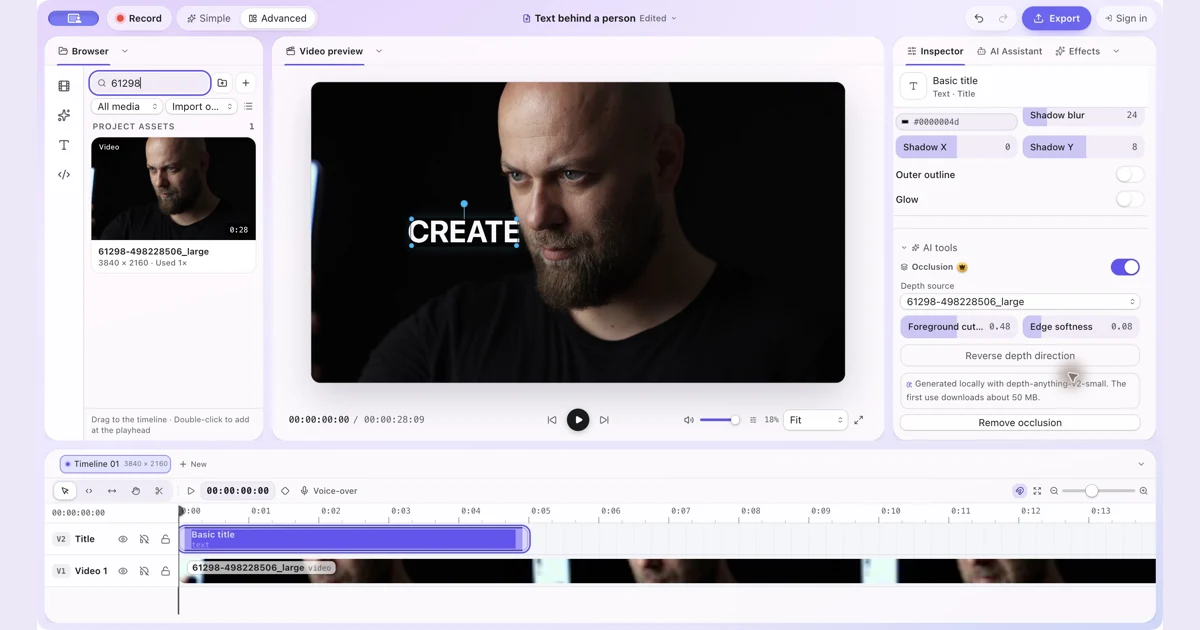 How to Put Text Behind a Person in a Video on MacPut text and other visual items behind a person with manual occlusion in ZXN Studio. Follow the layer setup and refine the depth boundary.
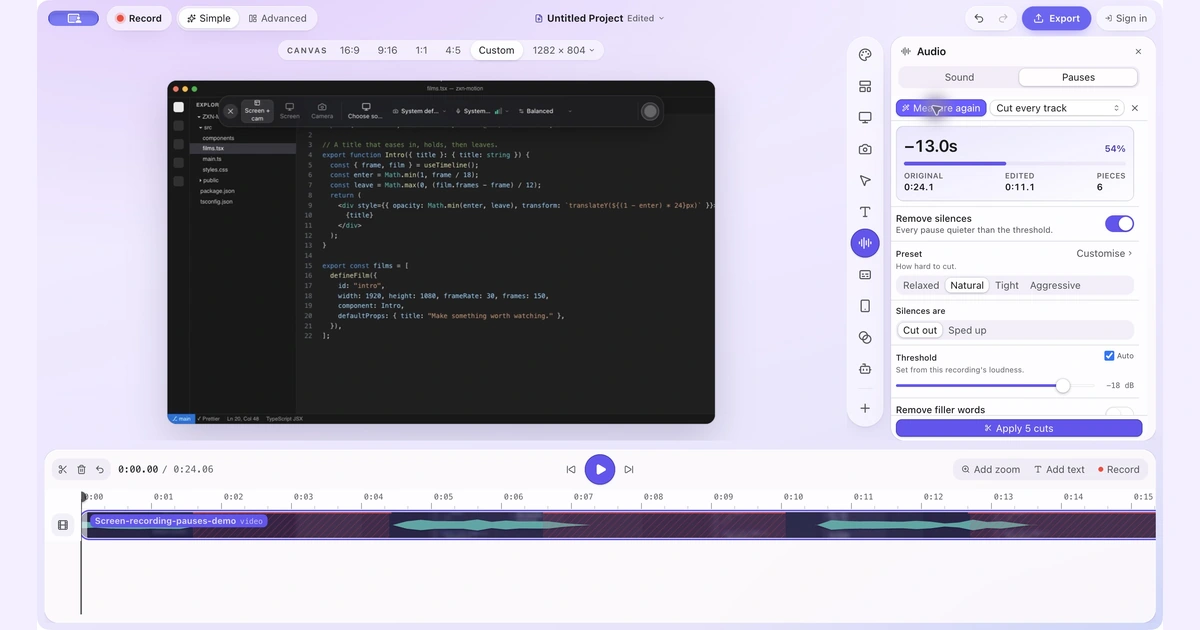 How to Remove Silence and Long Pauses From a Screen Recording on MacFind quiet gaps, keep useful thinking time and shorten a screen recording without cutting off words or losing sync.
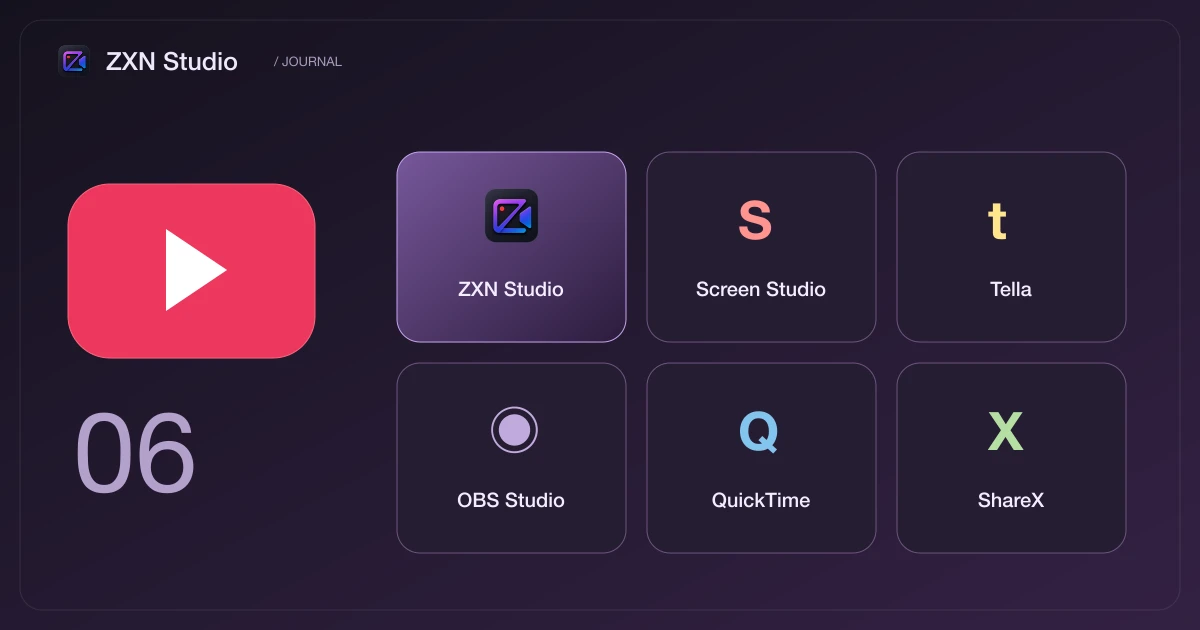 The best screen recorders for YouTube: six tools for different kinds of creatorsFrom a first tutorial to a polished software demo, compare ZXN Studio, Screen Studio, Tella, OBS Studio, QuickTime and ShareX with clear pricing tables.