
Share screen recordings with a link in ZXN Studio
Turn a finished recording into a hosted viewing link, manage visibility and keep revisions together with 100 GB of storage on Studio monthly.
In this article
A finished screen recording should be easy to hand over. The viewer needs a clear explanation and a working way to watch it; you need to know which version you sent and where the source project lives. ZXN Studio now connects the editing workflow to hosted link sharing, with 100 GB of managed cloud storage included in the monthly Studio plan.
You can prepare the video locally, upload it deliberately and choose its visibility before sharing. That makes link delivery useful for product walkthroughs, customer explanations, onboarding material and videos that will need a correction later. It also keeps the publishing decision in your hands: finishing an export does not automatically make it public.
Start with the video you want people to watch
There are two related tasks: preserving your working material and delivering a finished explanation. For a customer-facing walkthrough, complete the edit first. Trim the setup, remove mistakes and check the key action at the size your audience will see it.
A useful video title identifies the result. “How to invite a teammate” is easier to find later than “Recording 12.” Keep the title consistent with the video itself so someone opening the link understands what they are about to watch.
Export the finished video and play it outside the editor. Listen to the narration, inspect the first and last frames and make sure titles remain readable. A hosted link makes distribution simpler, but the file still needs to communicate the task clearly. The exporting guide covers that final check.
Upload privately, then choose who can watch
After a completed export, choose Share finished video. Sign in to your ZXN Studio account if needed. The sharing dialog shows the files being prepared, their sizes and the destination, including managed storage for the monthly plan.
For a new video, choose the option to create a new private video, then Upload privately. Wait until the upload completes. ZXN Studio then opens the route to Sharing settings, where you decide who should be able to view it. Uploading does not change your local files.
The private starting point is useful when you want to review a video before sending it. You can finish the transfer, inspect the uploaded result and choose the intended access in a separate step. It also means that copying a management address is not the same as sending a working viewer link.
Before delivery, open the actual viewing link in a separate browser session. This checks the experience without relying on your signed-in ownership of the video. Make sure the intended audience can play the result.
Understand private, unlisted and public visibility
ZXN Studio provides private, unlisted and public visibility settings. Private media is for the owner. Unlisted viewing uses a link with its access key, so the complete link matters. Public media can be viewed through its public sharing address.
Choose the setting based on the audience. An unlisted link is convenient for a specific recipient, but anyone who obtains that complete link can use it. Treat it as a delivery mechanism, not an invitation system tied to a named person. Keep an internal draft private until it is ready to circulate.
If you are publishing a video in a help article, open the article's actual link after adding it. That catches simple mistakes such as copying the wrong version or leaving a video private. Clear access settings save the viewer from having to ask for a replacement link.
Keep the link when you revise the video
A useful recording often outlives its first edit. A setting changes, a sentence needs correcting or a customer asks for one more explanation. In the upload dialog, select an existing video in the Share field to update it rather than creating another private video.
Updating keeps the existing link and visibility. That is valuable when the link already appears in a support reply or an onboarding document. You can improve the video without replacing its address everywhere it has been used.
Feedback stays associated with each version. This gives a comment its proper context when the new edit has different timing. After updating, open the shared result and check that the intended version plays. Keep revisions purposeful: a stable link is most useful when it continues to answer the same question.
Separate playback from an editable backup
The upload dialog can also Include editable project & assets. This option is off by default. When selected, ZXN Studio packages a portable project backup locally, separate from the playback video.
That backup remains private. Its purpose is to preserve material you can restore and edit; the viewing link delivers the video. To restore the packaged project, unzip it and open Project.zxnproj with its assets available.
Choose the backup when preserving an editable version is useful, particularly before reorganizing local working files. Remember that a project and its sources may take substantially more space than the final video. Sharing a concise walkthrough does not require uploading every editable asset unless you choose to include them.
Plan around 100 GB of managed storage
The monthly Studio plan includes 100 GB of managed cloud storage. This is a capacity allowance rather than a fixed number of video hours. Duration, resolution, frame rate and encoding affect file size, while retained media and optional project backups also need space.
The sharing dialog shows upload size and available managed capacity so you can make an informed choice. Review those figures before uploading a large project package. An active monthly plan is required for new managed uploads; the lifetime editor purchase does not include the monthly managed-storage allowance.
Keep local source material organized even when you publish online. A viewing link, a final export and a working project each solve a different part of the workflow. Knowing which one you need makes both delivery and future editing easier.
A straightforward handoff
Finish one explanation, export and inspect it, upload privately, set visibility and test the viewer link. When you need to revise it, update the existing video deliberately. That gives the recipient a clear place to watch and gives you a manageable path for corrections.
See plans and billing for the current plan details, or download ZXN Studio to record, edit and share your next walkthrough.
Related journal notes
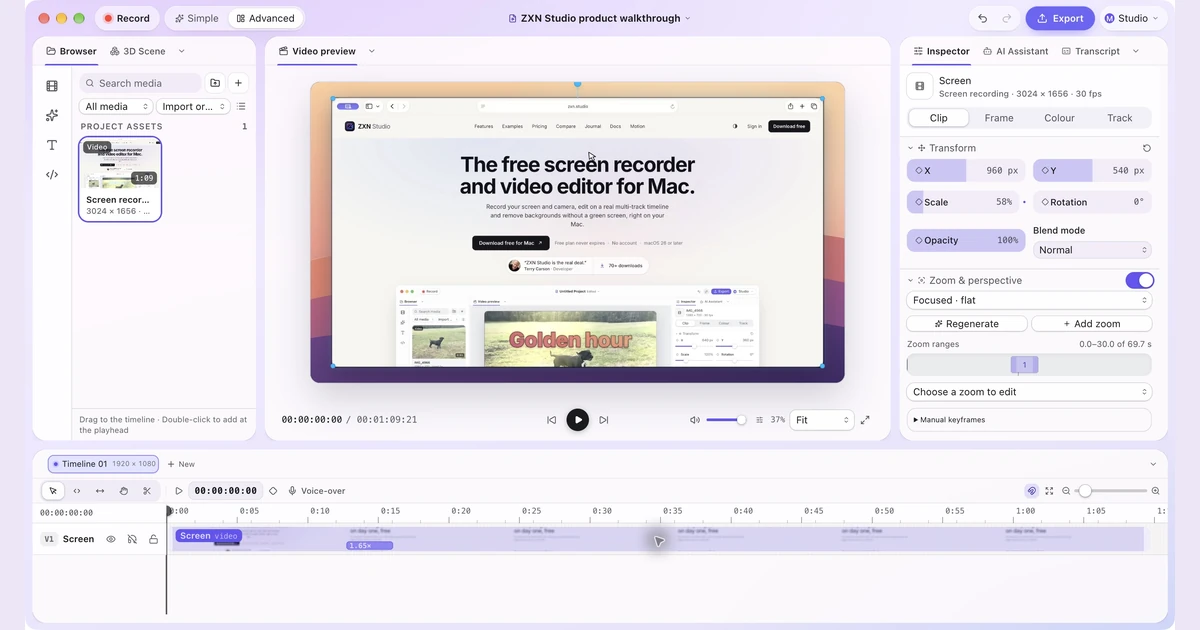 12 Loom alternatives for screen recording, editing and sharingCompare 12 Loom alternatives for quick updates and polished demos, with clear editing, hosting and pricing tradeoffs, including ZXN Studio.
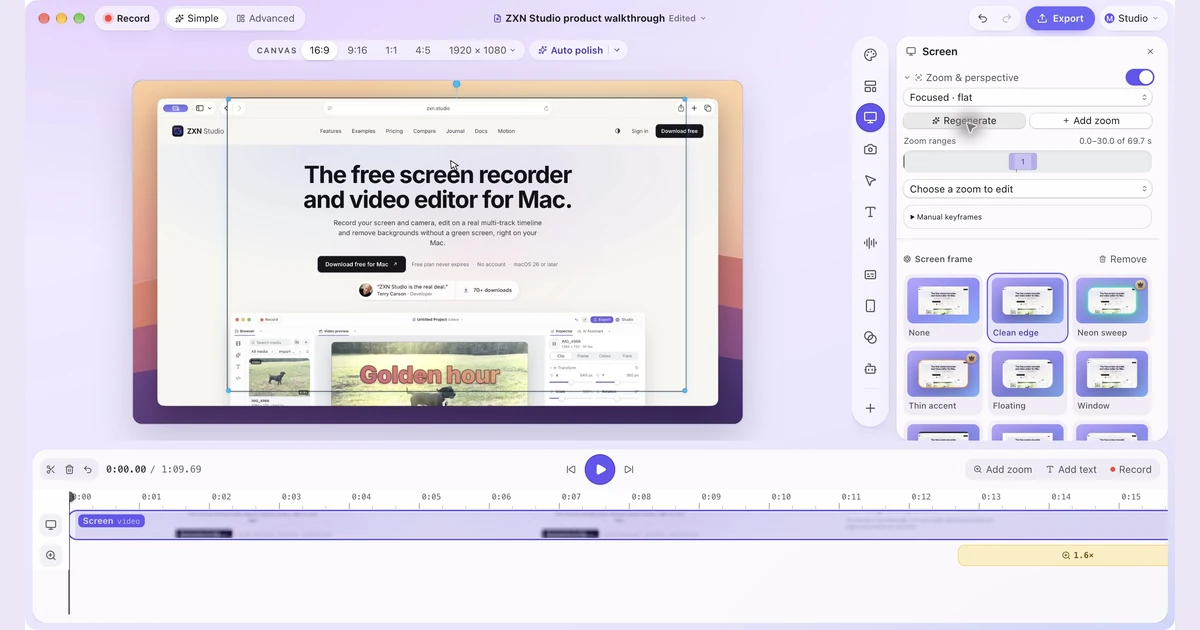 One project, two layouts: Simple and Advanced in ZXN StudioKeep the preview front and center in Simple, or open the full editing workspace in Advanced. Switch layouts while continuing the same project.
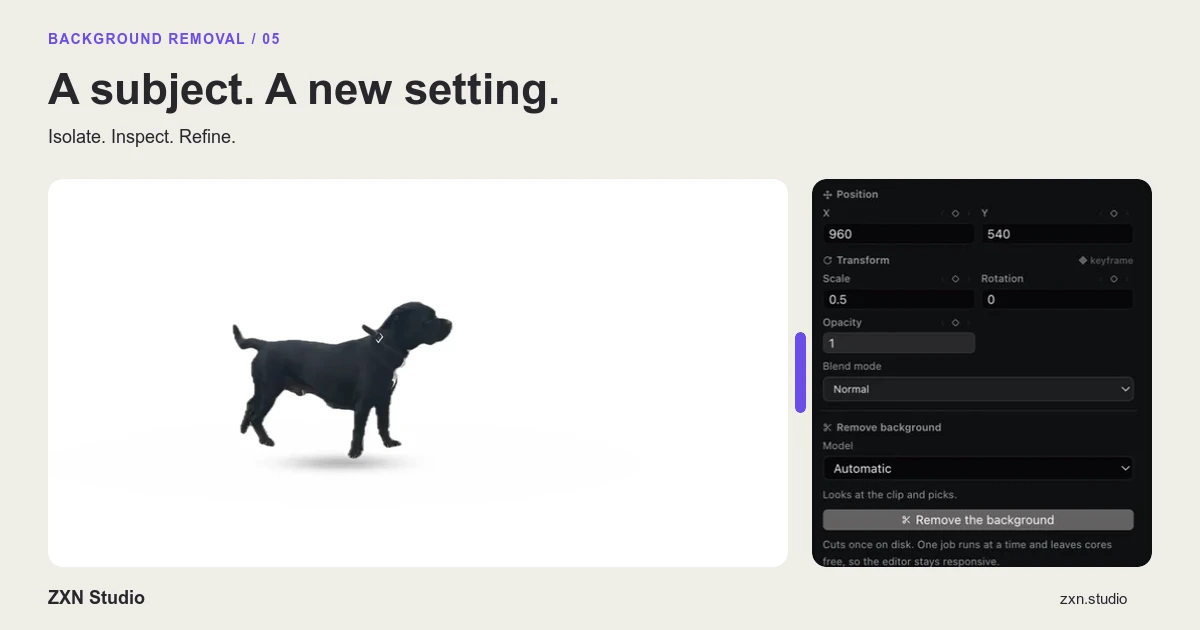 Make your presenter stand out with camera Pop outLet your presenter extend beyond a camera frame in ZXN Studio. Learn how Pop out, subject cutouts, headroom and shadow work together.