
ZXN Studio vs Screen Studio
Compare Screen Studio’s automatic recording polish with ZXN Studio’s multi-track control, including Mac audio capture, requirements and export checks.
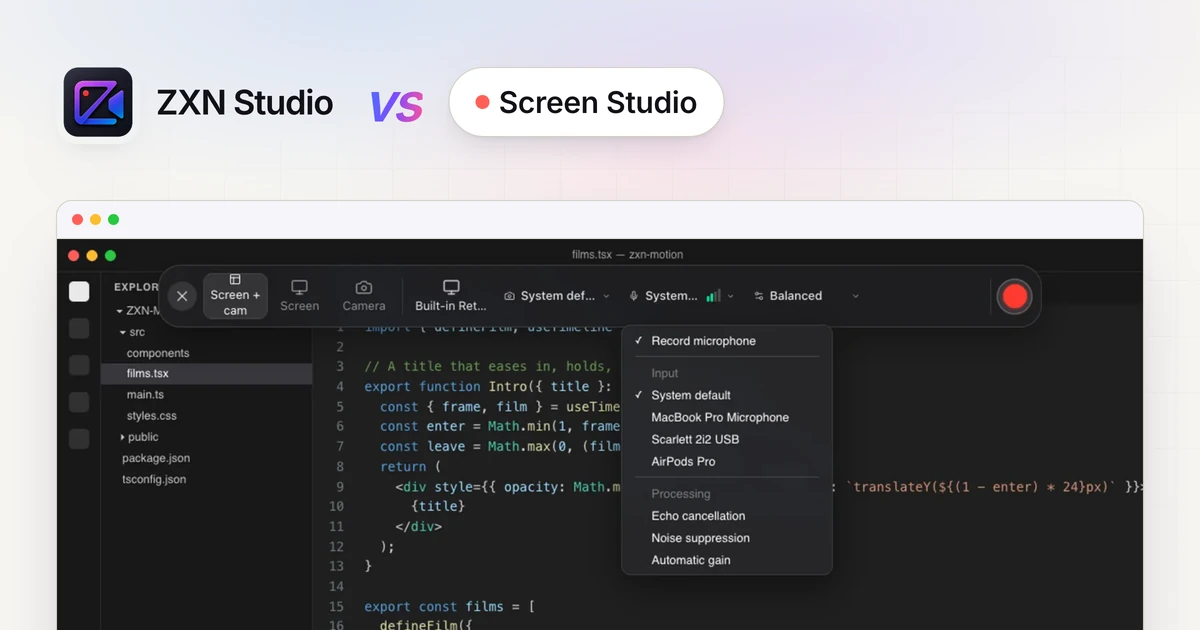
In this article
Screen Studio and ZXN Studio both deserve consideration for Mac screen videos, but they emphasise different workflows. Screen Studio's official site highlights automatic zoom and cursor presentation around recordings. ZXN Studio combines recording with a creative multi-track editor for deliberately arranging footage, titles, effects and motion. ZXN Studio also offers click-based Auto zoom, perspective styles and hosted links on monthly. Compare how each workflow handles the edits and delivery you need.
ZXN Studio feature details were updated on 4 October 2026. Screen Studio references were reviewed on 19 September 2026; check its linked official pages for current details. This is not a timed benchmark or a claim of feature-for-feature parity.
Compare automatic zoom and manual control
Screen Studio's Auto Zoom guide explains that automatic zoom focuses on recorded click locations. It also notes that an area without a click requires manual selection rather than an automatic target. That distinction matters for demonstrations where the important event is a result appearing elsewhere, not the button you pressed.
ZXN Studio's Auto zoom generates editable focus ranges from complete click metadata in a new ZXN screen recording. Adjust timing, focus and strength, or use Add zoom for a manually chosen moment. Edited zooms survive regeneration. Focused · flat, Floating · perspective and Tilt reveal · entrance give the same footage different presentation styles. Read the zoom guide.
For a fair test, include a click, a keyboard-driven action and a result appearing away from the cursor. Judge whether the viewer can follow all three without unnecessary reframing.
Test Mac system audio in each recorder
Screen Studio officially documents system-audio recording, including choosing audio from all applications or selected applications. That is relevant for software demonstrations in which internal playback is part of the evidence.
ZXN Studio's native Mac recorder captures screen and camera, with microphone or audio-interface input and a separate System audio toggle for application playback. Enable the sources your demonstration needs and inspect the completed test recording.
When the demonstration depends on application audio, test that source independently of narration in each recorder. Compare the controls and capture behavior relevant to your application rather than assuming the two implementations are identical.
Consider what happens after the first take
ZXN Studio keeps completed screen and camera recordings separately editable. Its editor supports trims, splits, layers, transforms, opacity, blend modes and keyframes, so the final composition need not remain the layout you first recorded.
It also provides titles, effects, colour corrections, wheels, curves, local background removal and source-backed editable TSX motion graphics. These are relevant when the recording becomes part of a wider creative sequence rather than remaining a single demonstration.
Screen Studio also advertises editing and customisation on its official site. Do not describe it as having no editing tools. Instead, test the specific revision you expect to make, such as changing emphasis midway through the video or presenting a dense interface without obstruction.
Check operating-system requirements independently
Screen Studio's requirements guide lists macOS Ventura 13.1 or later and provides its processor and memory guidance. Read the full current page for your particular Mac rather than applying its requirement to another recorder.
ZXN Studio's current native recorder targets macOS 26 or later. That is a recorder requirement, not a claim that every possible media and effects workload performs identically on every eligible machine.
Use ZXN Studio's setup checks and a representative test to verify recording, editing and export. An application launching is not the same as a completed workflow.
Compare the output you actually need
Screen Studio advertises video export up to 4K at 60 fps, GIF export and shareable links on its official product page. Verify the current plan conditions and output controls before designing around a particular delivery route.
ZXN Studio Free includes recording/export up to 1080p at 30 fps. Studio adds 4K, 60 fps and supported native ProRes masters. Other current export choices include MP4 H.264/AAC, MOV H.264/AAC and WebM VP9/Opus.
Studio monthly also includes hosted link sharing and 300 GB of managed storage. ZXN uploads start private; choose visibility after uploading and update an existing video when you want to retain its link. These offerings do not establish identical export or hosting behavior. Test the destination, following ZXN export guidance and the sharing workflow.
Choose a plan after testing the composition
ZXN Studio's paid Studio plan costs $15.99 USD monthly or $159 USD lifetime. Monthly renews until cancelled; lifetime is one payment. Payments use Stripe, account access supports up to two connected devices, and optional AI/Codex services may have separate requirements or charges.
Free includes plain titles, six filters, six effects, three camera frames and people removal using RVM. Studio adds the expanded creative set, including all cutout models and live background removal. Studio-only treatments may be previewed in Free, but export identifies clips requiring Studio.
Check Screen Studio's current official pricing rather than assuming a historical licence offer remains available. Compare what you can deliver under each purchase, not only what a preview lets you explore.
Use one real demo to decide
Record the same short task, refine the framing and export it in each candidate workflow. Check readability, audio, camera placement and the effort needed to correct an awkward moment. Do not infer exported results solely from live or timeline previews.
Compare Screen Studio's recording presentation with ZXN Studio's Simple and Advanced layouts, editable zoom ranges and multitrack composition. Choose the workflow that makes your real demonstration clear and gets it to the viewer in the form you need.
Related comparisons
 ZXN Studio vs CapCutCompare CapCut’s official editing and caption tools with ZXN Studio’s Mac recording and multi-track workflow, using a practical project test.
 ZXN Studio vs DaVinci ResolveCompare ZXN Studio’s recording-led workflow with DaVinci Resolve’s post-production tools, including free export limits and a practical hand-off test.
 ZXN Studio vs LoomCompare Loom’s video-message and sharing workflow with ZXN Studio’s editable Mac recordings, creative timeline and file-based delivery choices.