
A screen recording worth watching
Plan a screen recording around one useful outcome, then shape the framing, narration and edit so viewers can follow the work instead of the cursor.
In this article
A screen recording becomes worth watching when it makes a useful task easier to understand. Attractive framing can help, but it cannot replace a clear starting point, a visible action and an outcome the viewer recognises. Before choosing an animation or camera frame, decide what someone should be able to do after watching.
For a tutorial, show how to complete the task. For a launch video, show why the result matters. These are different editorial jobs, even when they use the same footage.
Make one promise and fulfil it
Write the video's purpose in one sentence: 'Show how to replace a background without covering the interface', for example. Use that sentence to judge every section of the recording.
Open with the relevant result or a brief description of the task. Then provide the minimum context needed to follow the demonstration. A long introduction about the product's history rarely helps someone who arrived to solve a specific problem.
When a section introduces a second unrelated promise, either remove it or give it a separate video. Focus is a planning decision, not something you can reliably manufacture with faster cuts afterwards.
Let the interface carry evidence
Show the control being used and the resulting change. Do not cut directly from an unexplained starting image to an attractive finished state unless the video is intentionally a teaser rather than an instruction.
Keep a recognisable reference point during reframing. If every cut lands at a different scale or position, the viewer may spend more effort locating themselves than learning the task.
A useful planning exercise is to write three labels beside the script: what the viewer sees, what the narration explains and what changes next. When those disagree, fix the sequence before recording.
Capture material that survives editing
Prepare demonstration data, close unrelated content and rehearse the route through the application. Increase interface text where necessary before recording rather than assuming a later zoom can recover unreadable detail.
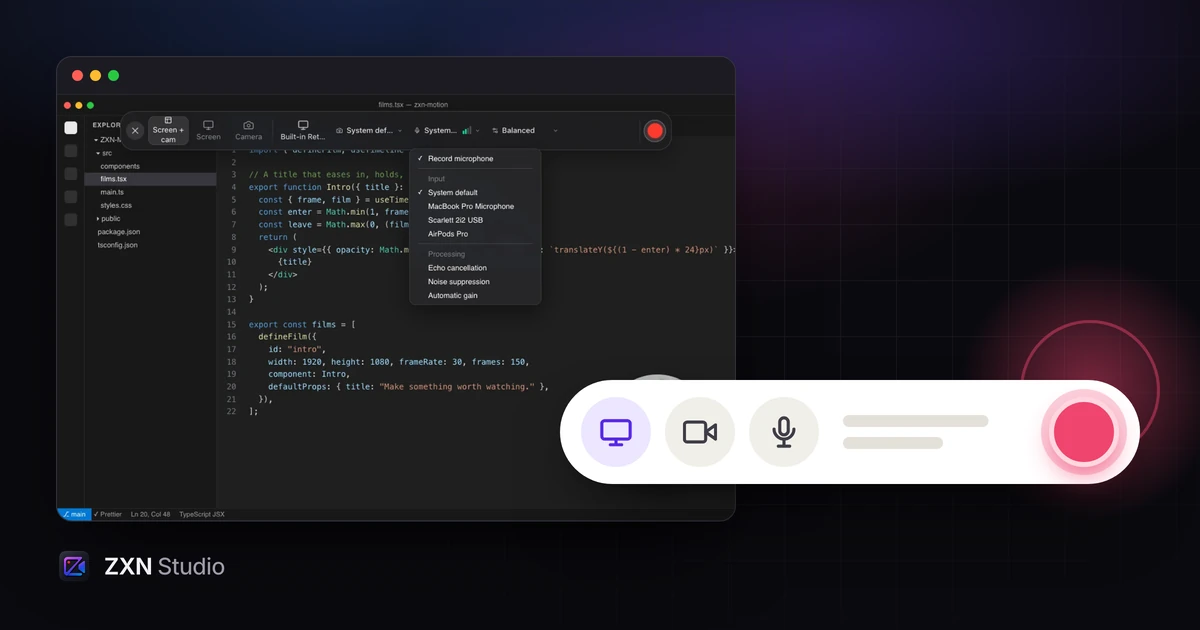
Record a short section containing real scrolling, menus and speech. In ZXN Studio, the current native Mac recorder targets macOS 26 or later and captures screen, camera and a microphone or audio-interface input. Completed screen and camera recordings remain separately editable.
That separation lets you refine the presenter layout later. It does not remove the need to capture the correct screen content and usable narration. Follow the recording checklist before the full take.
Give the camera a reason to be there
A presenter can introduce a topic, explain a decision or make a conclusion feel more direct. They do not need to occupy valuable space throughout a dense interface demonstration.
Place the camera where it does not cover the active area. During an important menu or result, consider reducing its prominence or keeping attention entirely on the screen. Restore it when the explanation benefits from a person rather than another close-up of the interface.
Background removal is one composition option, not a requirement for professionalism. A well-framed camera with its original surroundings may communicate better than a distracting cutout. The cutout finishing guide explains that trade-off.
Edit for understanding, not maximum speed
Remove repeated setup, abandoned sentences and waits that teach nothing. Preserve the moments that allow the viewer to locate a control or recognise the result of an action.
Use titles to identify steps, not to repeat every spoken sentence. Use transforms or keyframes when they direct attention to something specific. Avoid moving the screen, camera and title simultaneously unless their relationship remains obvious.
ZXN Studio supports multi-track editing, splits, layers and keyframes, but those tools do not decide the right pace. Play each revised section as a complete explanation. The timeline workflow helps separate structural editing from visual polish.
Make sound part of the plan
Narration should explain the decision or consequence, not merely announce that you are clicking. 'This keeps the camera clear of the export controls' adds information that 'Now I move it' does not.
The current native Mac recorder can include application sound with System audio enabled. Choose the microphone separately, then test both sources in the completed recording. A working microphone test alone does not validate software playback.
When sound is essential evidence, establish a separately verified capture approach before recording. Do not discover the missing source while assembling the final edit.
Review as an unfamiliar viewer
Watch the export once with sound and once without it. The silent review can reveal unclear visual sequencing; it does not replace proper accessibility work or establish that the video has captions.
Check the file at its intended viewing size, particularly small interface text. Free supports recording/export up to 1080p at 30 fps; Studio-only features previewed in Free are identified at export.
Finish by asking whether a new viewer could name the result and follow the steps. Keep the edit that answers those questions, even when the simpler version uses fewer effects.
Refine the presentation and hand it over
Use Simple or Advanced to arrange the workspace around the edit. New ZXN screen recordings with complete click metadata support automatic zoom; manually chosen ranges can emphasize results that appear away from a click.
Once the export communicates the task clearly, share it through a hosted link. Studio monthly includes 300 GB of managed storage. Upload privately, choose visibility and test the recipient's viewing experience before sending it.
Related journal notes
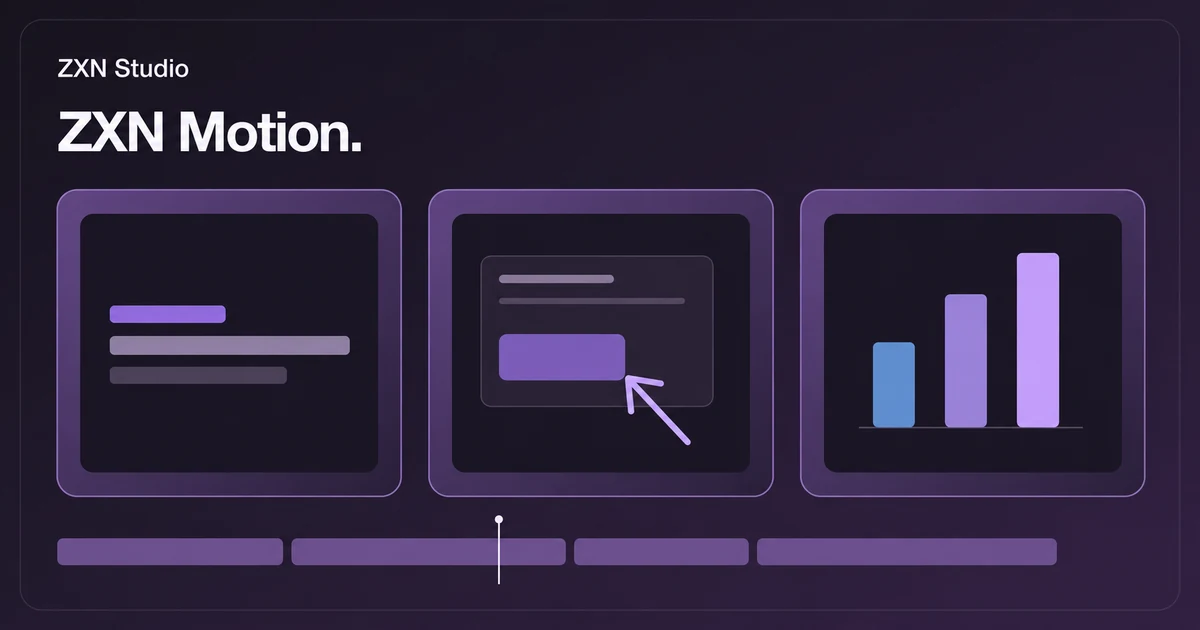 Inside the ZXN Motion library: editable titles, callouts and graphics for your videosFind editable titles, lower thirds, callouts and charts in the ZXN Motion library. Choose graphics that make tutorials and product demos easier to follow.
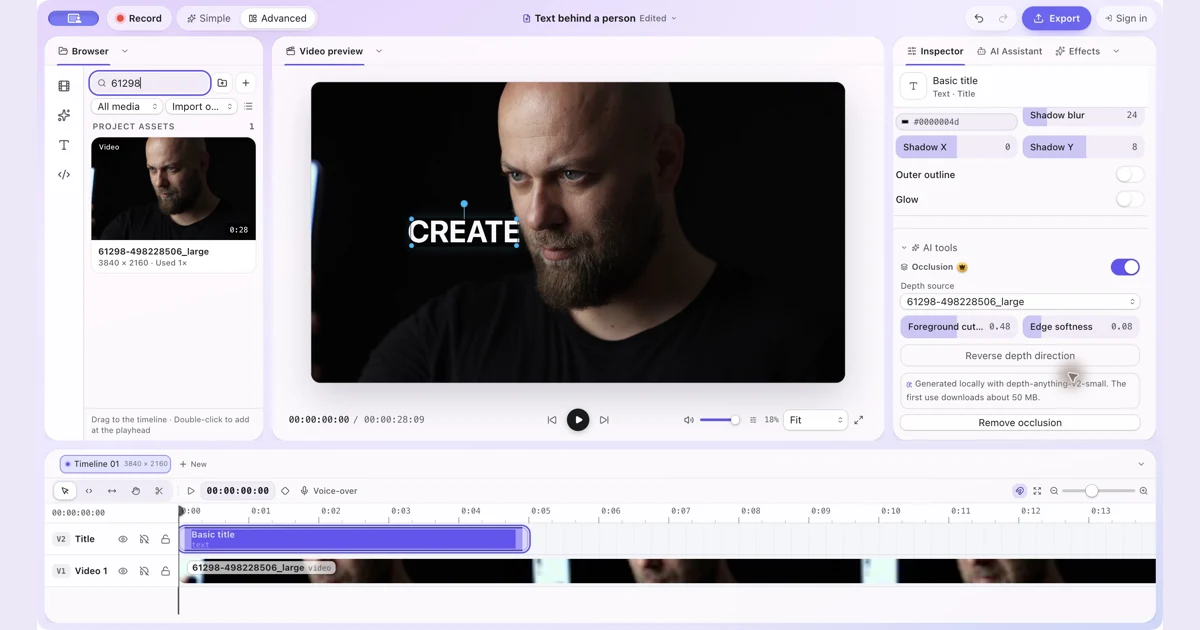 How to Put Text Behind a Person in a Video on MacPut text and other visual items behind a person with manual occlusion in ZXN Studio. Follow the layer setup and refine the depth boundary.
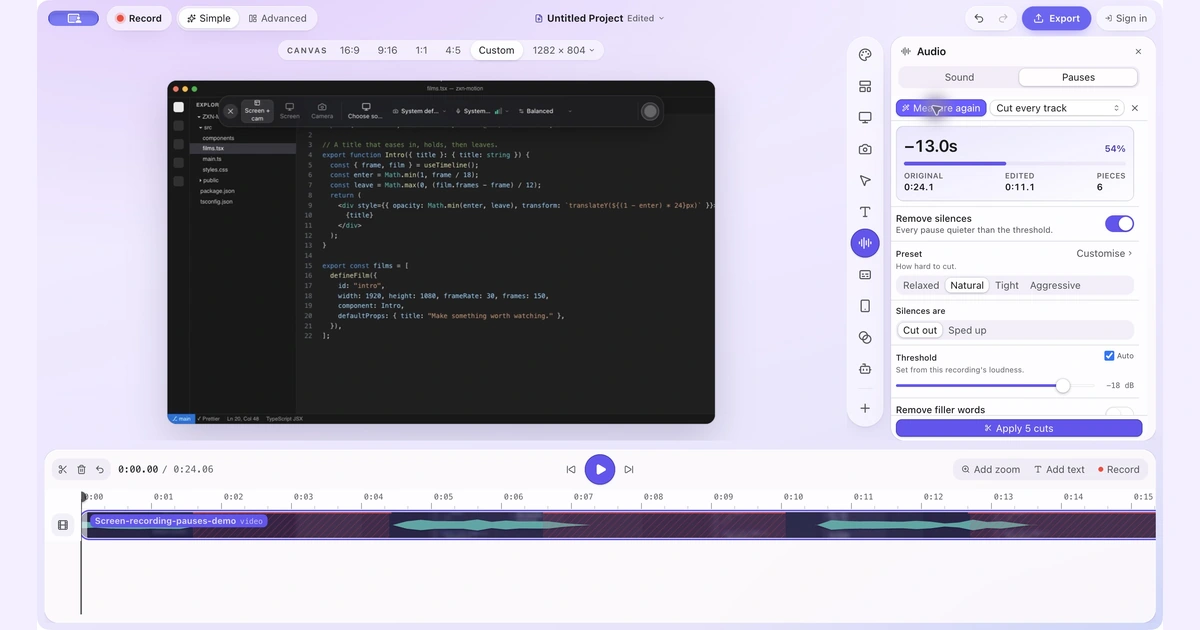 How to Remove Silence and Long Pauses From a Screen Recording on MacFind quiet gaps, keep useful thinking time and shorten a screen recording without cutting off words or losing sync.